Marquis IQ MCP Server Connections let approved users ask Claude Desktop questions about Marquis IQ data using a secure, authorized Claude custom connector.
i
MCP is currently in beta. Access, available tools, and supported datasets may vary by customer. If you do not see MCP connection options in Marquis IQ, contact support@marquisdata.com.
Connect
Use your Marquis IQ access
The Claude connector uses approved Marquis IQ access so Claude can work with the data available to your account.
Ask
Start with natural language
Ask for AP invoices, purchase orders, supplier activity, customer data, and other available Marquis IQ datasets.
Analyze
Iterate in chat
Follow up with filters, summaries, rankings, comparisons, and export-ready result sets without rebuilding a report.
Prerequisites
MCP access must be authorized before a user can connect Claude Desktop to Marquis IQ.
Required Access
Each user must be added to the appropriate Microsoft Entra group by a designated Marquis Data Security Administrator.
Each user must be specifically granted row-level and column-level access to each dataset within the client's Marquis IQ instance.
Access is user-specific. Do not share MCP configuration files, access tokens, or connection secrets with another user.
This quick start shows how to connect Claude Desktop to Marquis IQ using a Claude custom connector.
1
Open Claude Desktop User Settings
Open Claude Desktop and sign in with the account your company uses for Claude. From the Claude Desktop menu, open User Settings.
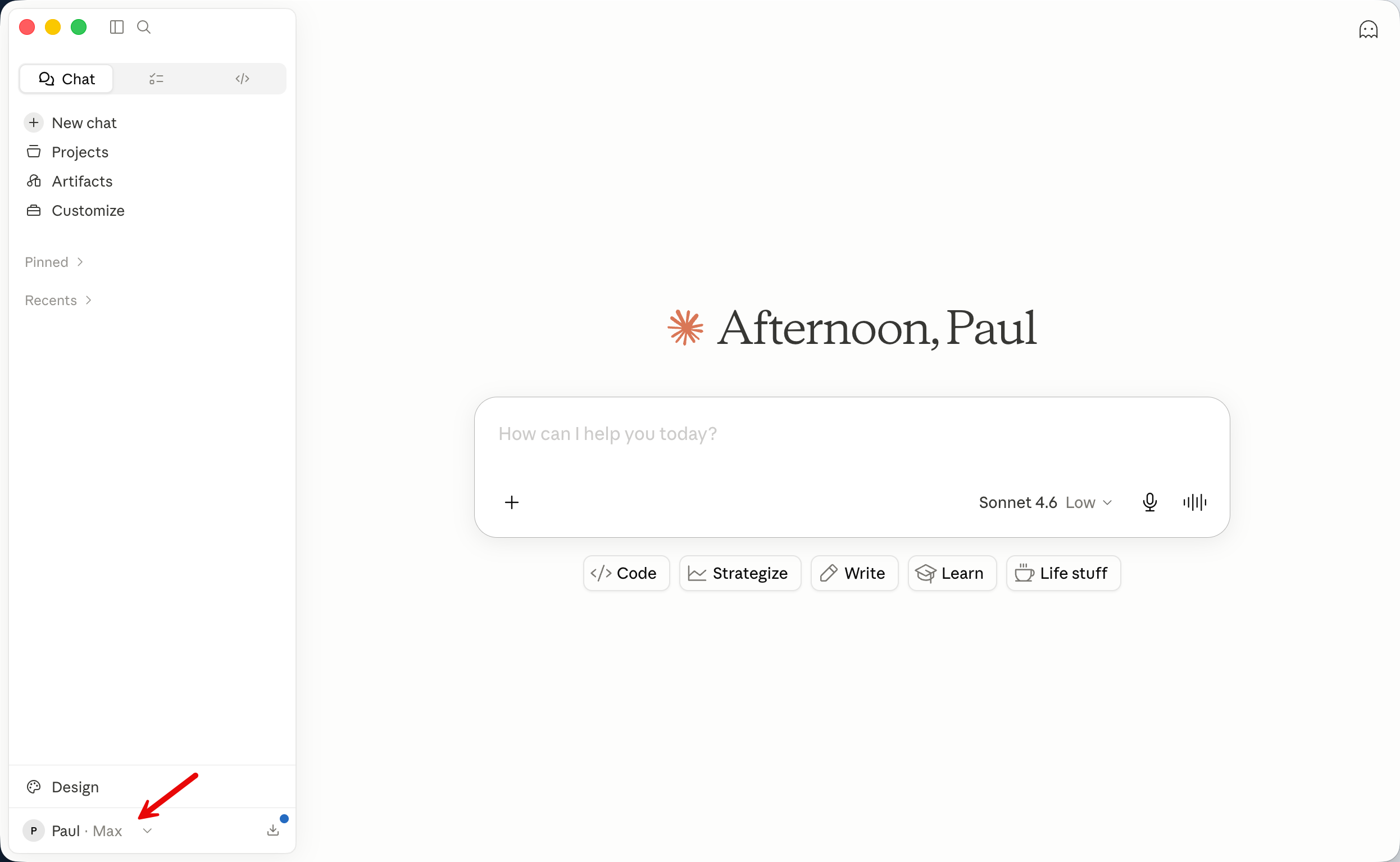
Open User Settings from Claude Desktop.
2
Open Connectors and click Add
In User Settings, open Connectors. Click Add to create a new custom connector for Marquis IQ.
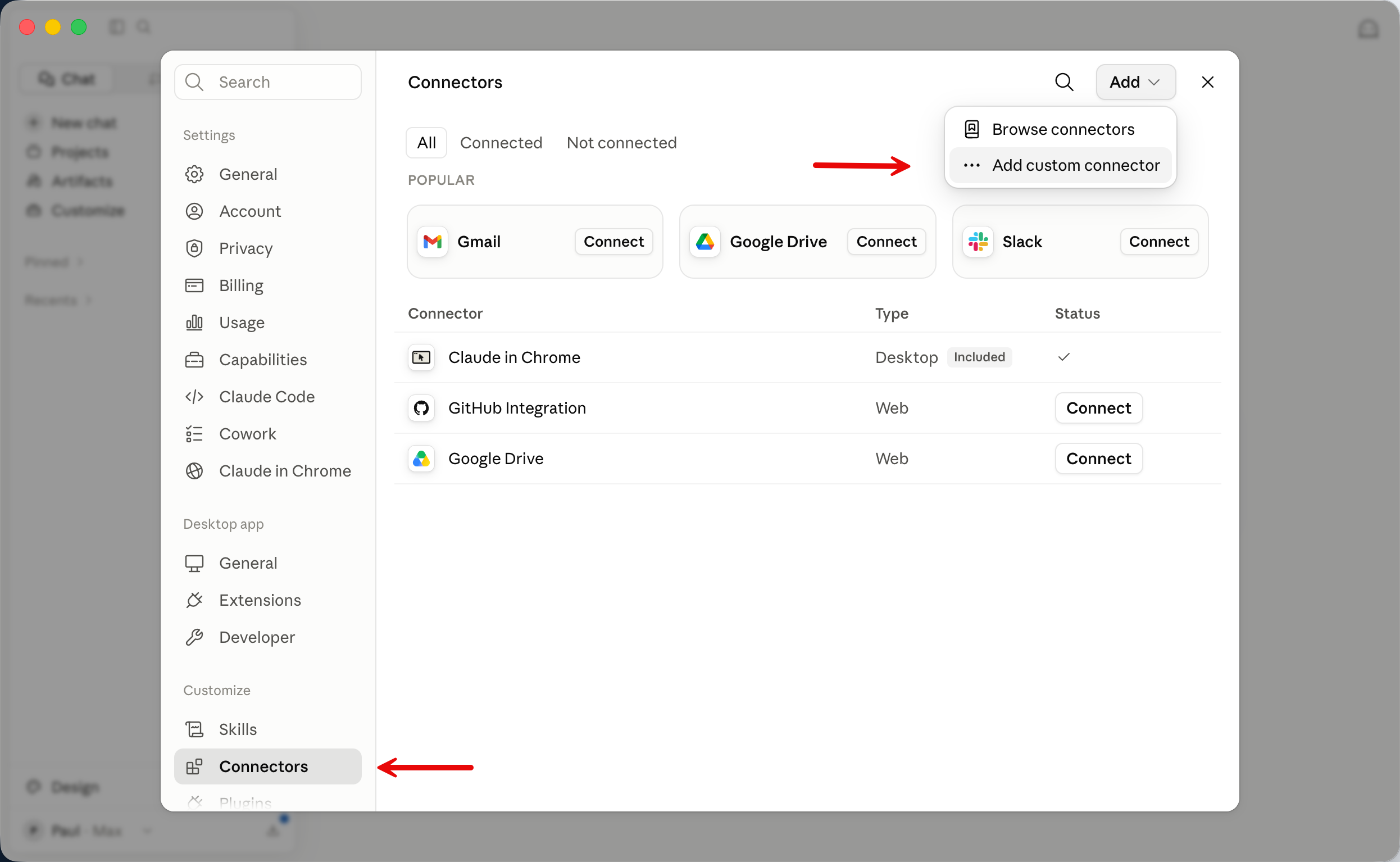
Use Connectors > Add to start a Marquis IQ custom connector.
3
Enter the custom connector details
Enter the connector name and the Marquis IQ MCP connection URL provided for your account. Use a clear name such as Marquis IQ so it is easy to identify later.
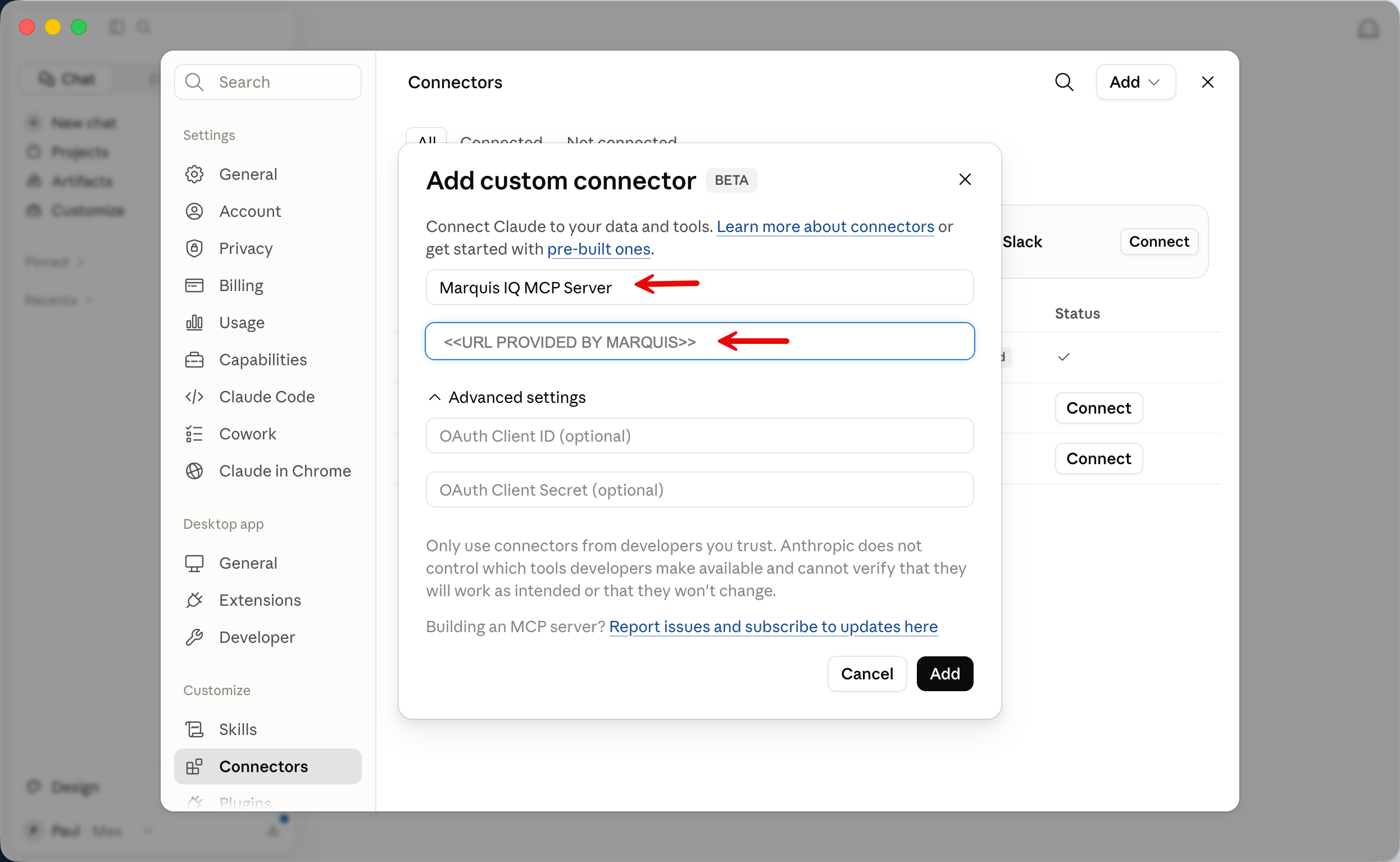
Enter the Marquis IQ custom connector fields.
4
Click Connect and enter your Microsoft Entra credentials
Click Connect. When prompted, sign in with the Microsoft Entra account that has been authorized for Marquis IQ MCP access.
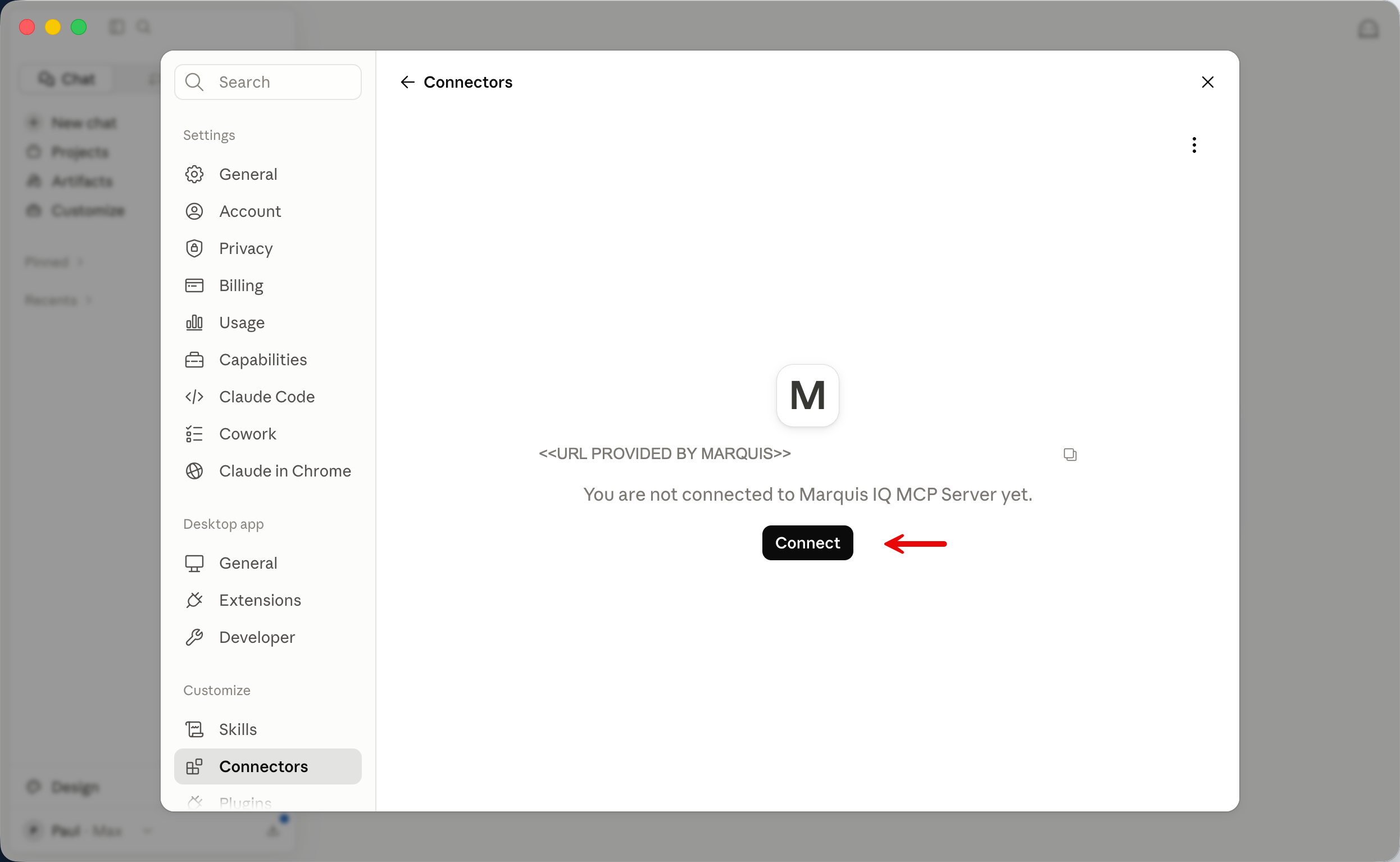
Click Connect and authenticate with your authorized Microsoft Entra credentials.
5
Allow the Marquis IQ connector
When Claude asks whether to allow the Marquis IQ custom connector, choose Always Allow. This lets Claude use the Marquis IQ MCP tools during your sessions.
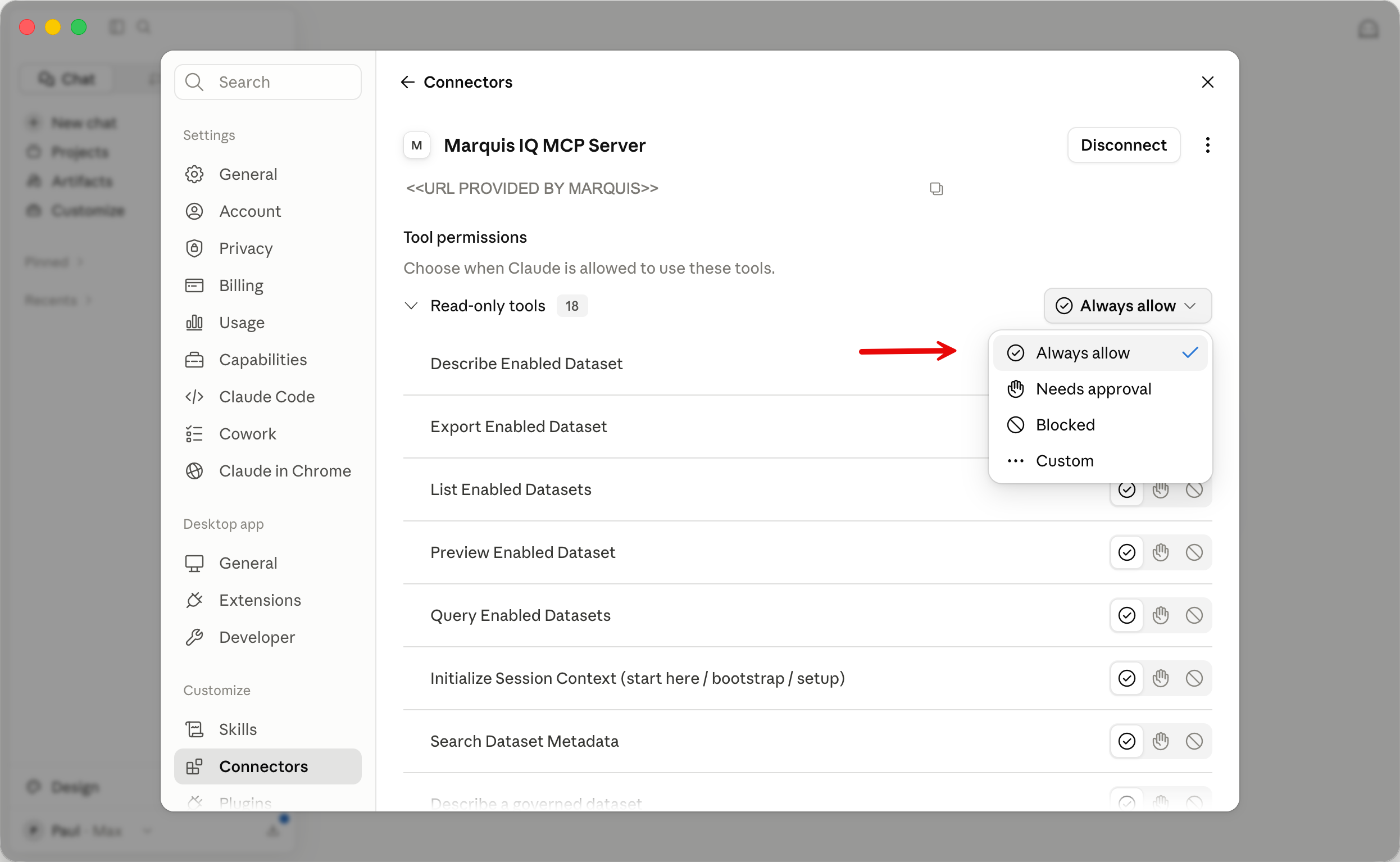
Choose Always Allow for the Marquis IQ connector.
6
Start a Claude chat with an initial prompt
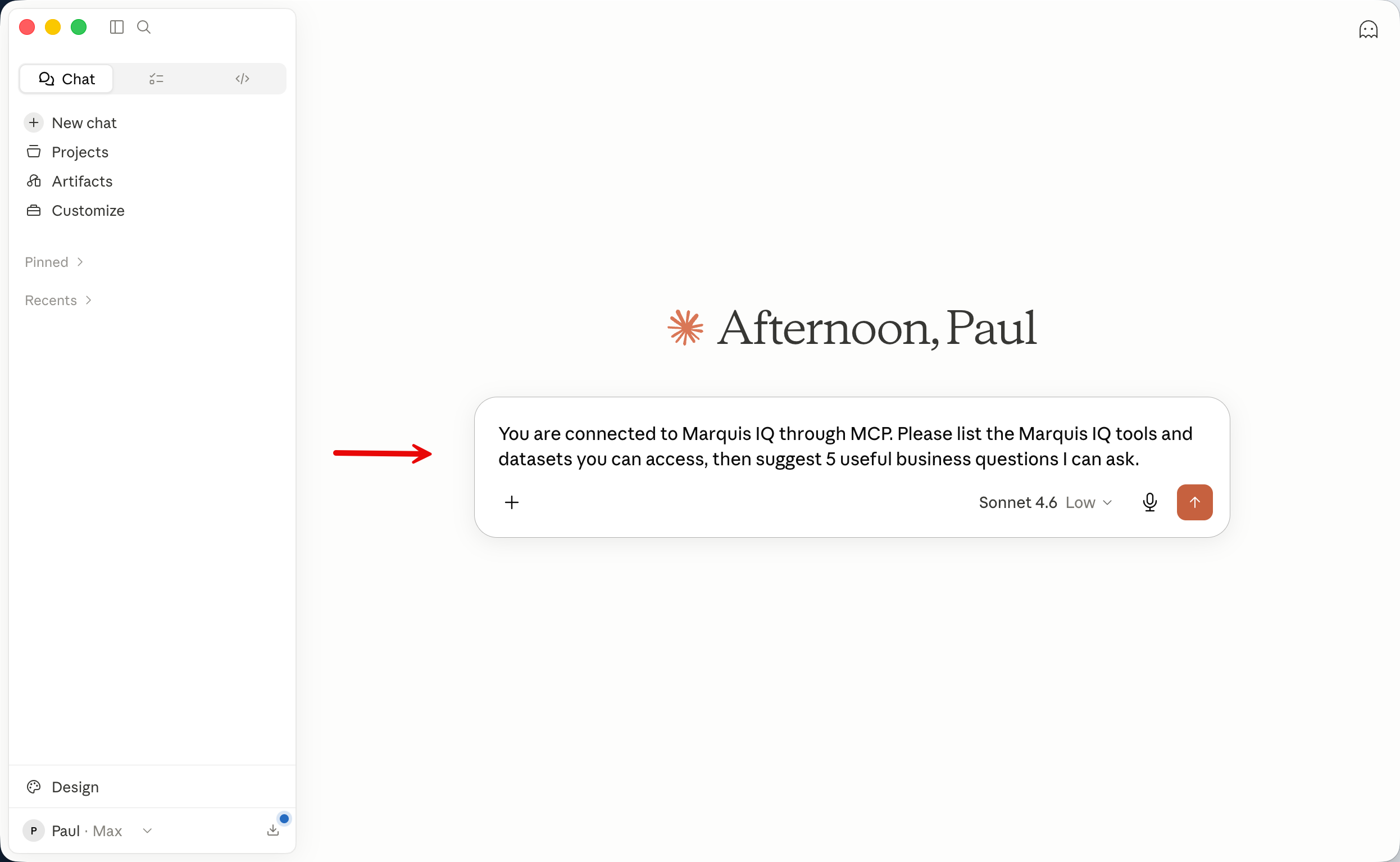
Open a new Claude chat and begin with a prompt that tells Claude to use Marquis IQ through MCP. The starter prompts below are designed to confirm the connection and help you understand which datasets are available.
Start a new Claude chat and ask Claude to use the Marquis IQ MCP connection.
Initialize a Claude Chat Session
Start each new Claude conversation by telling Claude to use Marquis IQ and by setting the business context for the analysis you want.
Start Here
Use this to confirm Claude can see the Marquis IQ MCP tools and understands what data is available.
You are connected to Marquis IQ through MCP.
Please list the Marquis IQ tools and datasets you can access.
Then suggest 5 useful business questions I can ask.
Data Orientation
Use this when you want Claude to explain the available fields before writing a more specific request.
Using Marquis IQ, show me what fields are available for:
- Suppliers
- AP invoices
- Purchase orders
Group the fields by business use.
Call out the fields most useful for filtering.
Scope Check
Use this to understand company, ERP, or date coverage before asking for analysis.
Using Marquis IQ, summarize the data coverage available for procurement and AP invoice analysis.
Include:
- ERP systems
- Companies
- Date ranges
- Any limitations I should know before asking for results
Ready-to-Use Business Prompts
Copy one of these prompts into Claude after your MCP connection is working. Edit the bracketed lines at the bottom of each prompt before sending.
AP Invoice Review
Find recent AP invoice activity for a supplier.
Using Marquis IQ AP invoice data, show invoices for the supplier listed below between the dates outlined in the date range below.
Include:
- Invoice number
- Invoice date
- Due date
- Company
- ERP system
- Invoice amount
- Currency
- Payment status
- Any available PO reference
Sort by invoice date descending.
[SUPPLIER]: Marquis Data
[DATE RANGE]: Jan-June 2026
Open AP Exposure
Summarize unpaid or aging invoices.
Using Marquis IQ, summarize open AP invoices as of today.
Group by:
- Supplier
- Company
Show:
- Total open amount
- Invoice count
- Oldest invoice date
- Top 20 suppliers by open amount
Highlight invoices that appear past due.
Purchase Orders
Review purchase order activity for a supplier or category.
Using Marquis IQ purchase order data, show purchase orders for the supplier or category listed below between the dates outlined in the date range below.
Include:
- PO number
- PO date
- Supplier
- Company
- ERP system
- Item or description
- Ordered quantity
- Received quantity
- Open quantity
- Unit price
- Extended amount
[SUPPLIER OR CATEGORY]: Marquis Data
[DATE RANGE]: Jan-June 2026
PO Follow-Up
Find open purchase orders that may need attention.
Using Marquis IQ, identify open purchase orders older than the number of days listed below.
Group by:
- Supplier
- Company
Show:
- Total open amount
- Open line count
Then list the top 25 oldest open PO lines with buyer, promised date, and any available receipt status.
[DAYS OLD]: 90
Supplier Spend
Compare supplier activity across invoices and POs.
Using Marquis IQ, summarize spend for the supplier listed below over the last 12 months.
Compare AP invoice total to purchase order total where both datasets are available.
Break results out by:
- Company
- ERP system
Call out any unusual spikes by month.
[SUPPLIER]: Marquis Data
Export-Ready Result
Ask Claude for a clean table you can paste into Excel.
Using Marquis IQ, create an export-ready table of AP invoices matching the filters listed below.
Keep the result to the most important columns.
Use clear column names.
Sort by invoice amount descending.
Explain any assumptions after the table.
[FILTERS]:
- Supplier: Marquis Data
- Company: All
- ERP system: All
- Invoice status: Open
- Date range: Jan-June 2026
- Minimum invoice amount: $10,000
Tip
Good MCP prompts are specific. Include the dataset, supplier or customer name, company, ERP system, date range, fields you want back, and how you want the results grouped or sorted.
Need Help?
If Claude Desktop does not show Marquis IQ tools after restart, confirm the configuration was saved correctly and that MCP is enabled for your Marquis IQ account. For access or setup help, contact support@marquisdata.com.